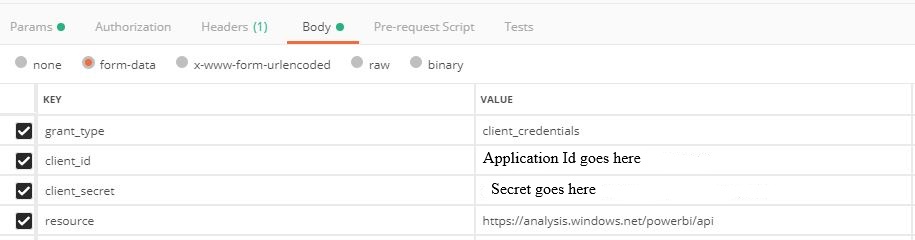
Below are the steps i followed to publish Power Bi reports using power bi embedded and service principal in our internal portal. 1. Created new application under App Registrations in Azure portal. Created a new application under App Registrations in Azure portal with application type “Web App / API”. this gives an Application Id, Object Id. under settings, create Key and save the secret as it will be hidden once you move from that page. also, under Required Permissions, you make sure you add below needed permissions. Also, make sure you grant click on grant permissions for each of the API.
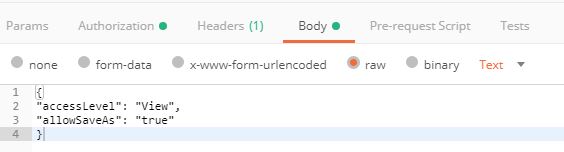
Powershell below to create application, adding service principal: Connect-AzureAD $app = New-AzureADApplication -DisplayName “XXXXXXXX” -Homepage “https://localhost:11111” -ReplyUrls “https://localhost:11111” $sp = New-AzureADServicePrincipal -AppId $app.AppId $key = New-AzureADServicePrincipalPasswordCredential -ObjectId $sp.ObjectIdWrite-Output $keyWrite-output $spWrite-output $app 2. Under Azure Active Directory, under groups, create a new group and add the Application you just created above as member. Powershell to create a new AD group and adding application Id member$group = New-AzureADGroup -DisplayName “XXXXXXX” -SecurityEnabled $true -MailEnabled $false -MailNickName notSet Add-AzureADGroupMember -ObjectId $($group.ObjectId) -RefObjectId $($sp.ObjectId)Get-AzureADServicePrincipal -Filter “DisplayName eq ‘XXXXXXX'”Login-PowerBIServiceAccount Get-PowerBIworkspace -name “XXXXXXX” Refer to below link for more details:https://docs.microsoft.com/en-us/power-bi/developer/embed-service-principal#get-started-with-a-service-principal 3. Now go to Power BI portal.Create “New Workspace Preview” to create a workspace to publish your power Bi report or dashboard. Follow steps in below link add access permissions. https://docs.microsoft.com/en-us/power-bi/service-create-the-new-workspaces Here is the trick to add application to this workspace using below powershell. Install-Module -Name MicrosoftPowerBIMgmt Login-PowerBI $script1 = @{identifier= “XXXXXXXXXXXX” # Service Principal Object ID groupUserAccessRight= “Admin” principalType= “App”} $script1JSON=$script1 | ConvertTo-Json Invoke-PowerBIRestMethod -Method post -Url “/groups/XXXXXXXXXXX/users” -Body $script1JSON # group Object ID Then, wait for 15 minutes to get these changes be applied. 4. Called, https://login.windows.net/####your tenant Id####/oauth2/token to get authentication code 5. Called, https://api.powerbi.com/v1.0/myorg/groups/###group id####/reports/####report id#####/GenerateToken to get power BI embedded token 6. used this tool, https://microsoft.github.io/PowerBI-JavaScript/demo/v2-demo/ to generate a sample code and pasted it in the web page. this should be able to publish the report or dashboard.




 techq-square